How to Setup PXE Server for SCCM OSD
Here are some notes from our Microsoft SCCM trainer a few months ago, really helpful on setting up PXE Server.
How to set up Option 66 & Option 67 on the DHCP Server
- Open DHCP management console (dhcpmgmt.msc)
- Add the server with the subnet you want to configure (i.e. dc01, dc02, etc.)
- Expand IPv4
- Expand the IP Scope you want to edit for PXE (i.e. 192.168.1.0)
- Right-Click Scope Options
- Click Configure Options
- Check 066 Boot Server Host Name and type the pxe server (i.e. cm01.domain.com)
- Check 067 Bootfile Name and type smsboot\x86\wdsnbp.com for the String Value in Data Entry area.
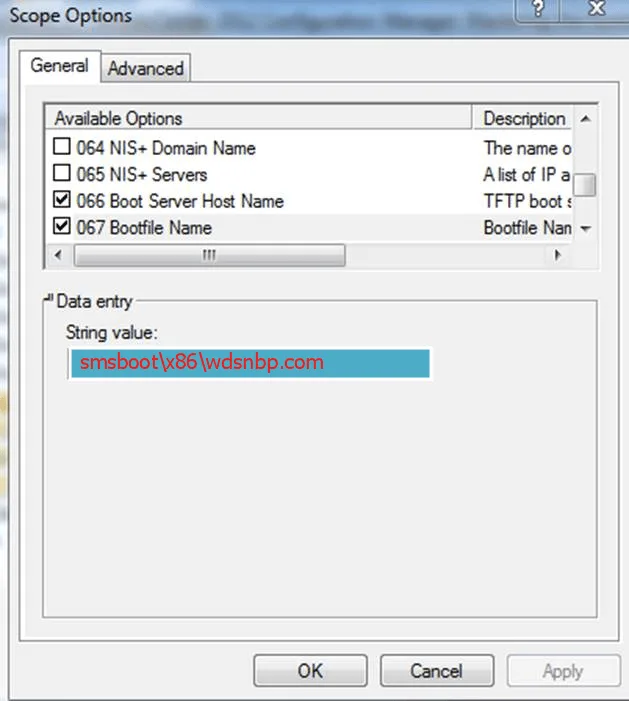
- Click OK
- Repeat as necessary for other dhcp scopes.
- Close DHCP console when all changes are made.
Settings in SCCM
- Make sure the enable PXE support for clients is Enabled on the DP (Specifically: Allow the DP to respond to incoming PXE Requests and Enable Unknown computer support.
- Make sure there is an x86 AND x64 boot image (NEED BOTH) on the DP/PXE Server, and make sure the box “Deploy this boot image from the PXE-enabled Distribution Point” is checked off in the boot image properties of both images under the Data Source tab.
- Also verify the two images are appearing in the \
<DriveLetter>$\RemoteInstall\SMSImages. You can also check against the SMSPXE.log in \Program Files\Microsoft Configuration Manager\Logs\SMSPXE.log for errors and if the images are setting properly for PXE. - Deploying the TS to the All Unknown Systems collection
- In the deployment of the TS, make sure to select “Only media and PXE” in the Make available to the following (not as important as long as PXE is one of these options).
- If testing with unknown computers then make sure computer is unknown/removed from SCCM.
Notes
- WDS is not necessary to install previously for PXE to work.
- The RemoteInstall folder will automatically be created on one of the drives on the DP. This is necessary for setting up Option 67 on the DHCP Server. The necessary DHCP Options are as follows:
Troubleshooting PXE
- If receiving these 2 event IDs for WDS and the service will not start:
- 513 - An error occurred while trying to initialize provider WDSMC from C:\Windows\system32\wdsmc.dll. Windows Deployment Services server will be shutdown. Error Information: 0x906
- 257 - An error occurred while trying to start the Windows Deployment Services server.
Error Information: 0x906 then run this command to get WDS service to start working: WDSUTIL /Initialize-Server /RemInst:D:\RemoteInstall Might need to uninstall and reinstall PXE. Possible order: uninstall PXE, do the above fix, and then install PXE Source: http://www.systemcentercentral.com/configmgr-pxe-boot-warning-matching-processor-architecture-boot-image-0-not-found/ SMSTS.log locations (http://technet.microsoft.com/en-us/library/bb932135.aspx): Note: Run CMTrace first to set it as the default viewer of logs (located under X:\SMS\Bin\i386\CMTrace) and go to the proper location of SMSTS.log.
- System booted in WinPE and the local harddisk is not modified (smsts.log in the “x:\windows\temp\smstslog” folder)
- System booted in WinPE and the local harddisk is partitioned and formatted (smsts.log in the “x:\smstslog” folder and after that in the “c:\De_SMSTaskSequence\Logs\Smstslog” folder
- System booted in Windows before the ConfigMgr client is installed (smsts.log in the “c:\_SMSTaskSequence\Logs\Smstslog” folder)
- System booted in Windows after ConfigMgr client is installed (smsts.log in the “c:\windows\system32\ccm\logs\Smstslog” folder) (When using a x64 device, you can find it in the “c:\windows\SysWOW64\ccm\logs\Smstslog” folder)