Automating Hardware OATH (FOB) MFA Provisioning with Azure Automation & Microsoft Graph
Automating Hardware OATH (FOB) Token Provisioning
with Microsoft Forms, SharePoint, Azure Automation & Microsoft Graph
A practical, end-to-end architecture & build guide.
This guide shows how to fully automate the issuance of hardware OATH-TOTP security tokens (“FOBs”) to users — ideal for populations that can’t use phone-based MFA (call centers, offshore staff, secure areas). It removes manual seed handling and per-user registration entirely.
Note: All names, domains, IDs, and links in this article are generic placeholders — replace them with your own environment’s values.
Table of Contents
- What This Solution Does
- Architecture
- Key Gotcha: Read the Seed from seeds.txt, not the XML
- Prerequisites
- SharePoint Setup
- Microsoft Form & Live Workbook
- Robustness Lessons Worth Copying
- Testing & Go-Live
- Troubleshooting
- Security & Compliance Notes
1. What This Solution Does
A user submits their token’s serial number via a Microsoft Form. Vendor “seed” files (the secrets behind each token) arrive by email and are ingested into a permanent vault. A scheduled Azure Automation runbook matches the serial to its secret, registers and binds the token to the user in Microsoft Entra ID via Microsoft Graph, and emails the user activation instructions. Admins get a per-run digest.
1.1 Design Principles
- Permanent SeedVault — seeds are parsed once and stored durably; new users always match, new seed batches simply append.
- Idempotent & self-healing — safe to re-run; stale/orphaned pool devices are auto-deleted and recreated.
- Fail-safe notifications — systemic errors (permission, BadRequest, throttling) are transient and never mass-email users; only genuine per-user data problems notify the user.
- Least privilege — a Managed Identity with scoped Graph app roles + the Authentication Administrator role; email sending restricted by an application access policy.
- Auditable — every run emails a digest with CSV; dedup lists provide a durable processing record.
2. Architecture
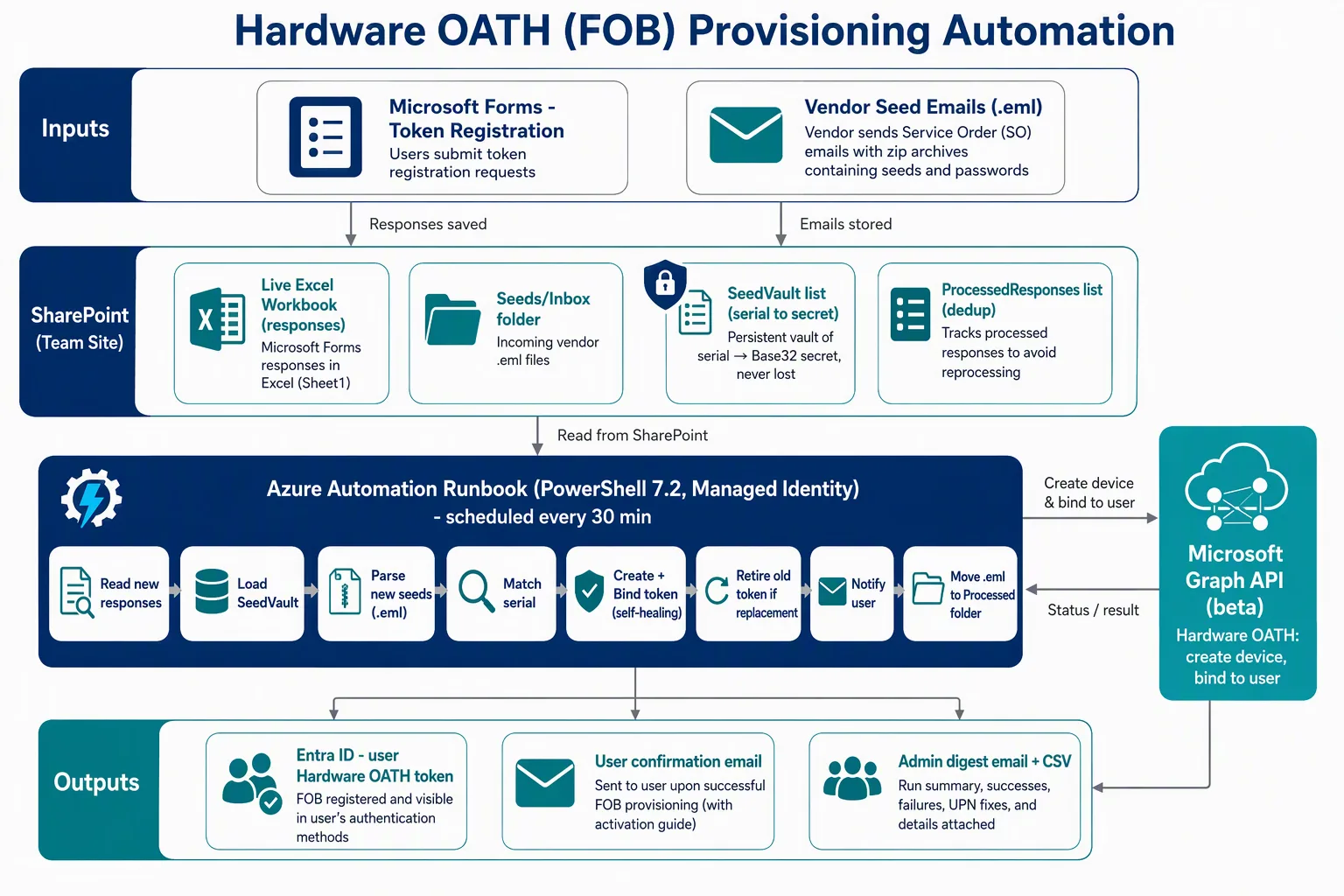
The diagram below shows the end-to-end flow across Microsoft Forms, SharePoint, the Azure Automation runbook, Microsoft Graph, and Entra ID.
Figure 1 — Hardware OATH (FOB) provisioning architecture
2.1 Components
| Component | Role |
|---|---|
| Microsoft Forms | Intake for the token serial number and a “replacement?” flag. Own it via an M365 group so its live Excel lands in team SharePoint. |
| Live Excel workbook | Auto-synced Forms responses in the team site’s Documents (tab ‘Sheet1’). The runbook reads new rows here. |
| Seeds/Inbox folder | Landing folder for vendor seed .eml pairs (a ‘Seed Delivery’ email + a ‘Password’ email). |
| SeedVault (list) | Permanent store of serial → Base32 secret. Source of truth for matching. |
| ProcessedResponses (list) | Dedup by Forms response Id, so each submission is handled once. |
| Azure Automation runbook | Scheduled PowerShell 7.2 job (Managed Identity) that orchestrates the flow. |
| Microsoft Graph (beta) | Hardware OATH endpoints: create the device in the tenant pool + bind it to the user. |
| Entra ID | Where the activated Hardware OATH method lives on each user. |
| Notifications module | Sends user confirmation emails and the admin digest via Graph sendMail. |
2.2 Per-run Flow
- Connect to Graph with the Automation Account’s managed identity.
- Read new responses from the live Excel; skip any Id already in ProcessedResponses.
- Load SeedVault; parse any new
.emlseeds and append new serials to the vault. - For each pending response: resolve the UPN, validate the serial, match it to a seed.
- Create + bind the token via Graph (self-healing: delete & recreate a stale device, retry once).
- If flagged as a replacement, retire the old token.
- Email the user activation steps; record the response as processed.
- Move processed
.emlto an archive folder (the vault already holds the data). - Send the admin digest with a CSV attachment.
3. Key Gotcha: Read the Seed from seeds.txt, not the XML
Vendor seed archives (a password-protected zip, sometimes disguised with a .pdf extension) typically contain three files: seeds.xml, seeds.txt, and key.bin.
The seeds.xml stores the secret inside an EncryptedValue (AES-128-CBC) — you cannot use it without the vendor’s decryption key. The seeds.txt contains the same secrets in plaintext Base32, ready for Entra:
Serial Number,Base32 Secret
2307532800604,YE4VLPC735ZJH3LPCCDCLJGMA6VJ6354
2307532800605,TUSZT7DQ5K2JHE7YP53LFZ4C2VUBJDKO
Lesson: parse seeds.txt. A correct Base32 secret decodes to 20 bytes (SHA-1). If you try to Base64-decode a Base32 string, you get garbage and Graph returns
BadRequest.
4. Prerequisites
4.1 Managed Identity — Graph Application Permissions
| Permission | Purpose |
|---|---|
Policy.ReadWrite.AuthenticationMethod | Create hardware OATH devices in the tenant pool |
UserAuthenticationMethod.ReadWrite.All | Bind/activate a token on a specific user |
User.Read.All | Resolve users by UPN / alias / proxy address |
Sites.ReadWrite.All | Read Excel + folders; read/write the SharePoint lists |
Mail.Send | Send user + admin notifications |
4.2 Managed Identity — Directory Role (the non-obvious one)
The app permission alone is not enough to write another user’s auth methods — you’ll get 403. Also assign the Authentication Administrator role (non-admin scope; least privilege).
New-MgRoleManagementDirectoryRoleAssignment -BodyParameter @{
  principalId      = "<managed-identity-object-id>"
  roleDefinitionId = "c4e39bd9-1100-46d3-8c65-fb160da0071f"  # Authentication Administrator
  directoryScopeId = "/"
}
4.3 Scope Mail.Send (least privilege)
New-ApplicationAccessPolicy -AppId "<mi-app-id>" `
  -PolicyScopeGroupId "<sender-scope-group>@example.com" `
  -AccessRight RestrictAccess -Description "Limit automation sender"
4.4 Custom PowerShell Modules (Runtime 7.2)
- SharpZipLib — extract password-protected zips.
- MimeKit — parse
.emlfiles. - Microsoft.Graph.Authentication + your notifications module.
5. SharePoint Setup
5.1 Folders
- Create Documents ▸ Seeds ▸ Inbox and Documents ▸ Seeds ▸ Processed.
- Restrict to your identity team + the managed identity (seed material is sensitive).
5.2 List: SeedVault
| Column | Type | Notes |
|---|---|---|
| Title | Single line | Serial number — Enforce Unique Values = Yes |
| Secret | Single line | Base32 secret |
| Interval | Number | 30 |
| HashFunction | Single line | hmacsha1 |
| Manufacturer | Single line | e.g., token vendor |
| Model | Single line | e.g., token model |
| SO | Single line | Source order (audit) |
| IngestedDate | Date & Time | When added |
5.3 List: ProcessedResponses
| Column | Type | Notes |
|---|---|---|
| Title | Single line | Forms response Id — Enforce Unique Values = Yes |
| UPN | Single line | Resolved user |
| Serial | Single line | Serial registered |
| Status | Single line | Registered / Failed |
| RunId | Single line | Run stamp |
| ProcessedDate | Date & Time | When handled |
6. Microsoft Form & Live Workbook
- Own the Form via an M365 group so responses land in team SharePoint (not a personal OneDrive).
- Questions: Serial Number, Is this a replacement? (Yes/No), plus email + login-name fields; keep ‘Record name’ on.
- On the Responses tab, click Open in Excel once to create the live workbook in the team site’s Documents.
- Note the workbook file name and the data tab name (often ‘Sheet1’) — the runbook needs both.
7. Robustness Lessons Worth Copying
These are the hard-won fixes that turn a proof-of-concept into something production-ready:
- Download .eml via
/contentto a file (or the pre-authenticateddownloadUrl). The SDK’s response stream can only be read once — reading it synchronously after an async read throws. - Parse PSKC namespace-agnostically using
local-name()XPath — vendors vary the namespace. And guard every node before calling.InnerText. - Boolean parameters: use
[bool](not[switch]) if a portal passes the value as the string"True". - Resolve users by alias/proxy — if
/users/{upn}404s, fall back to a filter onmail/userPrincipalName/proxyAddresses(ConsistencyLevel: eventual). - Auto-correct domain typos with a Levenshtein distance ≤ 2 against your real domain; log every correction.
- Classify failures: systemic (permission/BadRequest/throttle/timeout) = transient (retry, don’t email); per-user data (bad serial/UPN) = permanent (record + email).
- Self-heal stale devices: if a bind fails and the pool device is unassigned, delete it and recreate once.
8. Testing & Go-Live
| Step | Action | Expected |
|---|---|---|
| 1 | Run with WhatIf = True | Reads responses, loads/append vault, lists would-register; no writes/emails |
| 2 | Live with a small batch limit | A couple users → Created + Bound → Registered; emails sent |
| 3 | Verify in Entra | Users ▸ [user] ▸ Authentication methods shows Hardware OATH |
| 4 | Full live run | Remaining users provisioned; digest emailed to admins |
| 5 | Schedule | Recurring, e.g., every 30 minutes |
9. Troubleshooting
| Symptom | Likely Cause | Resolution |
|---|---|---|
Import-Module fails | Wrong runtime | Use the 7.2 runtime that has your custom modules |
| BadRequest on bind, everyone | Missing directory role | Assign Authentication Administrator; wait ~15 min |
| Forbidden (403) on bind | Missing role/perm | Grant UserAuthenticationMethod.ReadWrite.All + Authentication Administrator |
| BadRequest on a few serials | Stale unassigned pool devices | Self-heal deletes+recreates; else delete the pool device and re-run |
| ‘Serial not found’ | Seed not yet in vault | Add the vendor .eml to Inbox; retries next run |
| Invalid serial format | Typo / wrong device | User emailed to resubmit the correct serial |
| User not found | Alias/typo UPN | Alias/proxy fallback + domain auto-correct; else fix the response |
| 1-char / garbage secret | Parsed encrypted XML | Parse seeds.txt (plaintext Base32), not seeds.xml |
10. Security & Compliance Notes
- Least privilege — scoped app roles, Authentication Administrator (non-admin), Mail.Send restricted by policy.
- Protect seed material — restrict the seed folder + SeedVault list; delete extracted seeds from the sandbox each run. For higher assurance, store secrets in a key vault.
- OATH-TOTP is not phishing-resistant — fine as a compensating control for no-phone users, but prefer FIDO2 / passkeys / Windows Hello where feasible.
- Audit — keep the per-run digest + CSV and the dedup lists as your processing record.
— End of guide —